Lip Sync AI Video Generator
Create a private lip sync video with Visemix from a video or photo and your own audio, recording, or text. Files are checked in your browser before upload or credit use.
New · MiniMax H3 Max Lip SyncAdd your source
Choose the video you want to lip-sync
Upload Source
Start with a sample avatar
Add Voice
Advanced options
By clicking Generate, you confirm that you own or have permission to use the selected video, every person depicted, and the audio or text, and agree to the Content Policy and Terms of Service. Local preflight does not upload your files.
Explore lip sync workflows
Explore practical lip sync formats for photos, dubbing, social content, avatars, marketing, and education.
Talking Photo
Turn a portrait photo and audio into a naturally speaking video.
AI Dubbing
Preview a planned workflow for pairing translated speech with lip sync. End-to-end dubbing is not yet released.
Preview only · Full workflow not released
Social Clip
Create short vertical lip-sync videos for social platforms.
Example workflow · Not a separate tool
AI Avatar
Create presenter-style talking videos from an authorized portrait and voice track.
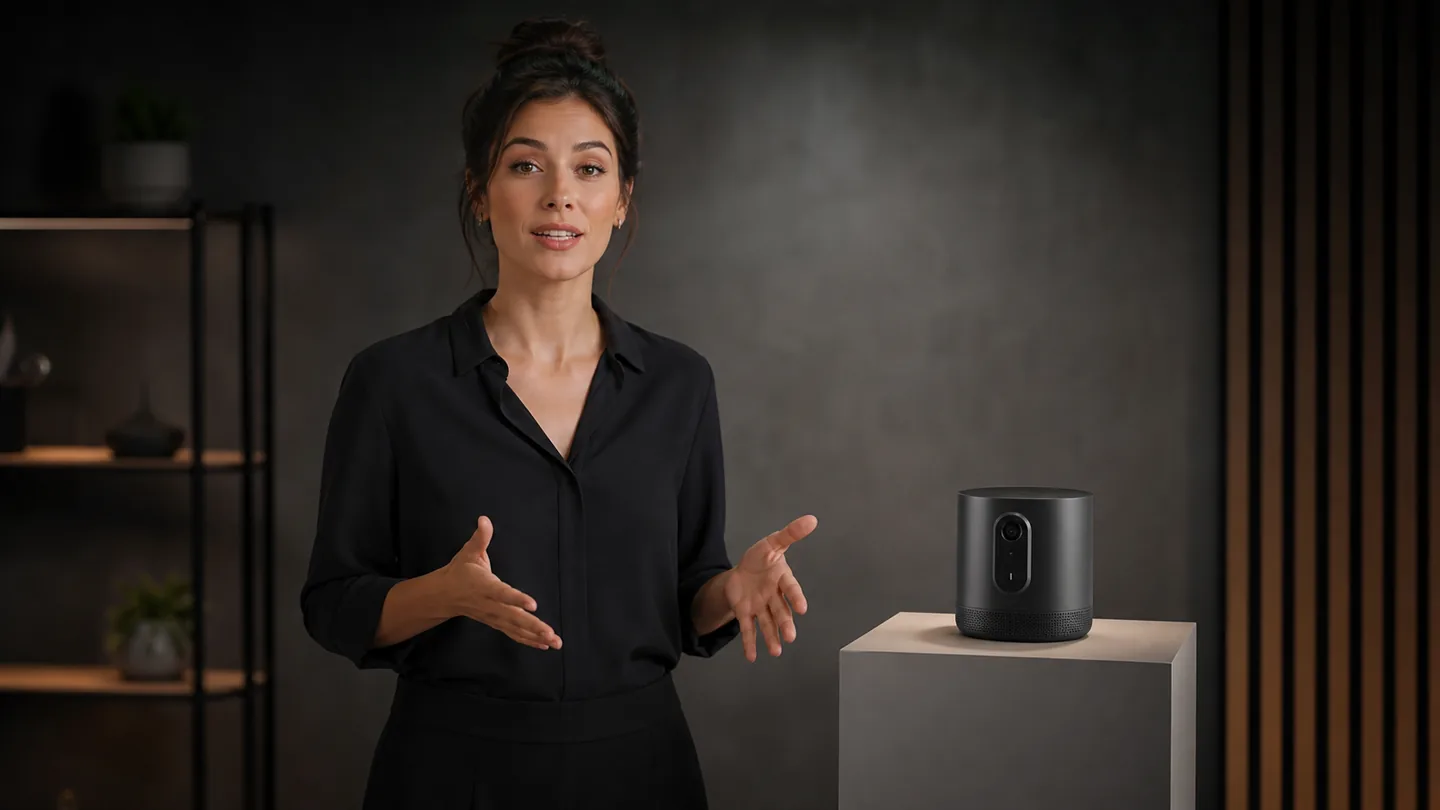
Marketing Video
Create product explainers and campaign videos with synchronized speech.
Example workflow · Not a separate tool
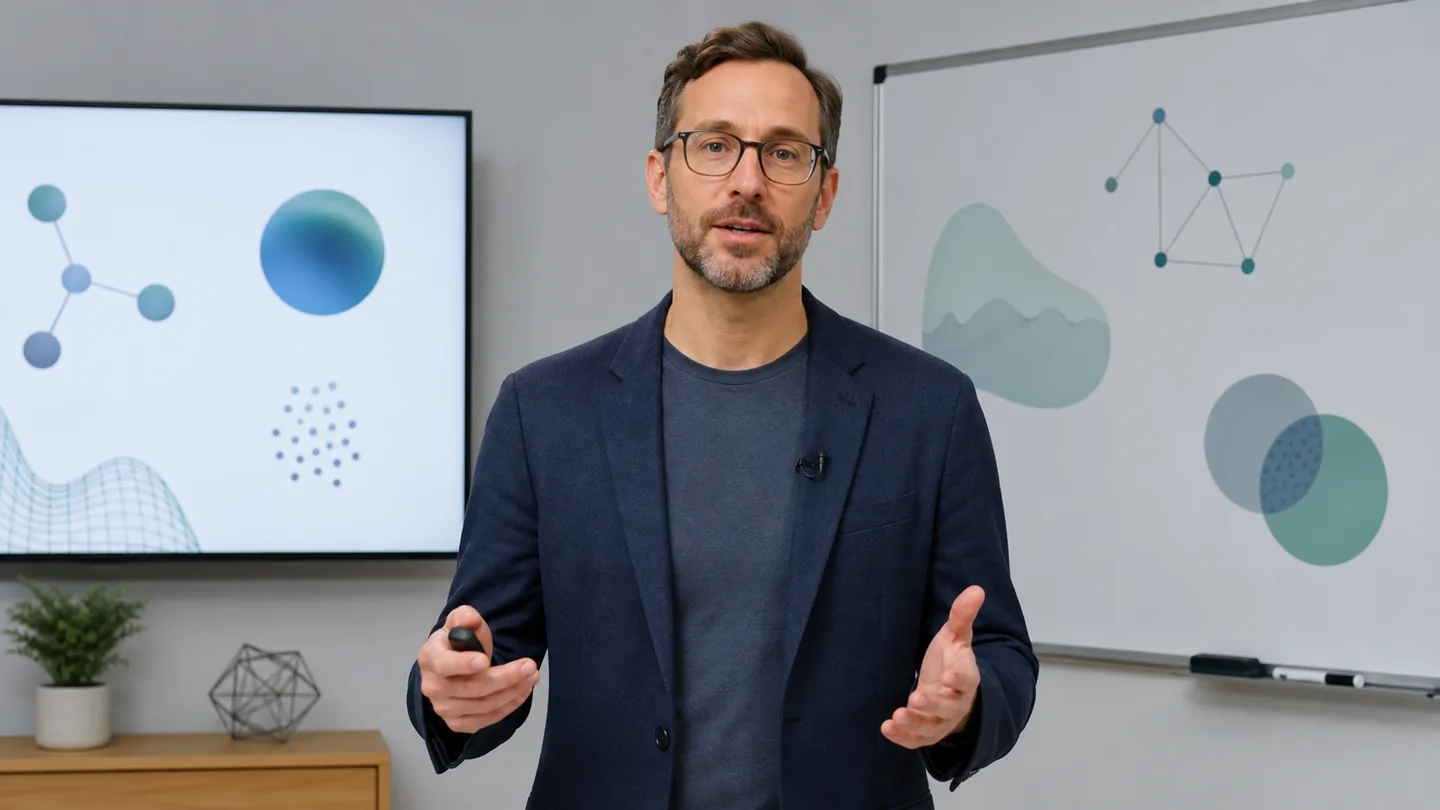
Education
Create lesson videos with clear, synchronized narration.
Example workflow · Not a separate tool
Lip sync online: what it means and how it works
Lip sync matches visible mouth movement to a new voice. This online AI lip sync workflow keeps file checks, voice input, and private generation on one page.
Lip sync—also written lip synch or lipsync—is short for lip synchronization. Here, lip sync does not mean fixing playback delay or miming a performance. It means using AI lip sync to regenerate visible mouth movement from a separate voice track while preserving as much of the original person, background, and frame as possible.
AI lip sync video from audio
An audio to lip sync workflow starts with a person on video and a separate voice. Upload audio, record in the browser, or use text-to-speech as the voice source. Lip sync from audio works best when speech is clear and both tracks have similar durations; automatic lip syncing then maps the speech timing to mouth movement.
BEFORE YOU CREATE
From file check to generation mode
Confirm that your media is ready for lip sync, then choose the video or photo workflow that matches your input. Both steps stay on this page so your work remains in context.
01 · FILE CHECK
Free lip sync AI file check
The free lip sync AI step checks format, file size, duration, resolution, and audio timing in your browser. This check does not upload files or spend credits. After it passes, you can sign in and use trial or purchased credits for private generation.
02 · GENERATION MODE
Online lip sync for video and photos
Use the online lip sync tool to add a video, choose a voice source, and generate on the same page. When Photo mode is available, it becomes an image to video lip sync AI workflow that creates a talking video rather than replacing mouth movement in an existing clip.
How to improve lip sync quality
Start with a clear input
Use a clear, well-lit face with visible lips and a mostly front-facing speaker. Side profiles, multiple speakers, fast head turns, and mouth occlusion are harder to sync. The local check can flag resolution or timing issues, but final results may still need review for blurry lips, teeth artifacts, or unstable frames.
Improve music and singing
For a lip sync song, lip sync music clip, singing lip sync, or rap lip sync test, use authorized media, begin with a short segment, and review the timing before download. Singing lip sync can be harder than speech because long vowels and rapid syllables create more demanding mouth shapes.
Protect media and privacy
Every lip sync job should use media you own or have permission to process. Files stay in the browser during the lip sync check and upload only after you sign in and explicitly request private generation.
Continue with the complete workflow or diagnose a specific input problem.
Create for every scenario
One professional engine built for creators, teams, educators, and global localization.
Marketing
Create synchronized product explainers and campaign videos from approved footage and voice tracks.
Creator
Turn your own talking-head footage and voice track into a synchronized creator video.
Education
Prepare clear, synchronized narration for lessons and training videos.
Localization
Adapt approved videos for another language while keeping speech timing easy to review.
From source asset to synced output
Upload your source, add a voice, and check compatibility before continuing to private lip-sync generation.
Upload and Check
Choose a video or photo. The browser checks format, size, duration, resolution, and timing before upload.
Choose a video or photo. The browser checks format, size, duration, resolution, and timing before upload.
Add a Voice
Upload audio, record in the browser, or generate speech from text when AI voice is available.
Upload audio, record in the browser, or generate speech from text when AI voice is available.
Generate the Video
After the check passes, sign in and use credits to submit a private lip sync generation.
After the check passes, sign in and use credits to submit a private lip sync generation.
Lip sync questions before you generate
Learn what AI lip sync means, how the online lip sync workflow operates, what the free check includes, and how to improve quality.